
If you’ve been searching for Best Free Photo Editing App ways to edit photos like a pro without paying for expensive tools, you’re in the right place. The truth is, a few free apps can handle almost everything you need—colour grading, retouching, selective edits, and clean finishing touches. Let’s break down the best ones and how to use them effectively.
Best Free Photo Editing Apps for Beginners and Creators
These four apps consistently show up in search for a reason:
Snapseed
Great for precision, selective edits, and advanced tools like Healing, Brush, and Curves.
Lightroom Mobile (Free Version)
Known for strong colour correction, professional tone control, and easy presets.
VSCO (Free Filters)
Perfect for quick aesthetic edits and consistent styles.
Pixlr
Good for fast adjustments, retouching, overlays, and beginner-friendly fixes.
Each of these apps works on both Android and iOS, which makes them accessible for almost everyone.
How to Edit Photos Like a Pro Using Free Apps
Let’s walk through the steps people usually search for: basic correction, colour grading, sharpening, and finishing.
1. Start with Basic Adjustments
All free photo editing apps offer this set of tools, and these are the real game-changers:
- Increase brightness slightly
- Add light contrast
- Fix white balance so colours don’t look too warm or too cool
- Add a touch of clarity or structure
This sets a clean base for everything else.

2. Fix Lighting and Tone
Better lighting equals better photos.
In Snapseed and Lightroom Mobile, adjust:
- Highlights – to control burning bright areas
- Shadows – to recover details from dark parts
- Blacks/Whites – to give the image crisp definition
These small tweaks make your photo look more intentional.
3. Edit Colours the Right Way
Colour editing is where Lightroom Mobile stands out.
- Use vibrance instead of saturation for a natural finish
- Open the HSL panel to edit colours one by one
- Boost warm tones for portraits
- Tone down greens for outdoor shots
These targeted edits make the image feel balanced instead of over-edited.
4. Use Selective Editing for a Professional Touch
Here’s what separates beginners from pros.
- Brighten only the face (Snapseed Selective tool)
- Slightly blur the background
- Sharpen the subject without affecting the whole image
Selective edits guide the viewer’s eye exactly where you want it.
5. Sharpen Without Ruining the Image
Every free app offers sharpening, but go easy.
Too much sharpening creates noise.
A small boost is all you need for crisp detail.
6. Apply a Consistent Style
People search for this all the time: How do I make my photos look consistent?
Save your favourite colour settings as a preset in VSCO or Lightroom.
This makes your edits uniform and speeds up your workflow.
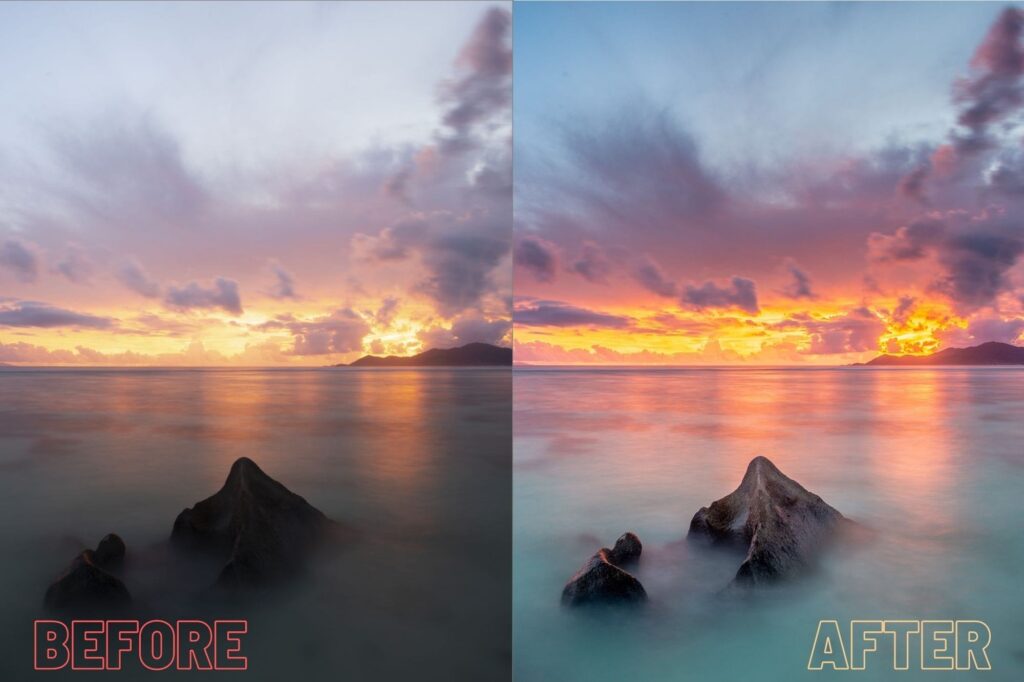
You don’t need paid tools to create high-quality, professional-looking edits. With Snapseed, Lightroom Mobile, VSCO, and Pixlr, you have everything you need right in your phone.
Master these basics, and your photos will instantly look sharper, cleaner, and far more polished.